In Tech Talk

  • Subscribe to our RSS feed.
  • Twitter
  • StumbleUpon
  • Reddit
  • Facebook
  • Digg

Monday, 3 October 2011

How To Delete / Remove Undeletable Files

Posted on 20:04 by Unknown
Complete guide on how to delete the undeletable files / folders
Is there a lot of left over files remains in your computer? Uninstalling a program or software would not means that the whole files of it would be remove completely. In most cases there are few files remain after you finish uninstalling and some of it are undeletable. You may not know maybe it could be a virus, malware, or a spyware. If not be remove or delete that would only mean that its gonna be a permanent temporary files that would contribute to build a problem that cause slowdown to your computer. Using a software for may removing it, but not all. Like for example in Ccleaner when you click the analyze button it will start scanning for files to be remove. After the scan finished it gives you a detail of total size of files to be remove for example 10mb but when you click the clean button and it finish removing the file, sometime it deleted 80 - 90 percent of the total files. The files that the Ccleaner cannot remove is the undeletable files. Well, I will teach you a possible way to remove / delete the undeletable files or folders.

Deleting Undeletable File Manually
Aere's a trick for removing undeletable file. As you can see in the picture below the "SoftwareU.." is my sample undeleted file. To remove / delete it just follow the steps. First open Notepad, then type anything on it and save as.

Step 1 for deleting undeletable file : Open notepad and save it

After that locate the folder where the undeletable files are and change the "file type" to "All files" to make all files in the folder or container to be visible.

Step 2 for deleting undeletable file: Locate it and click All Files

Then click the undeletable file once so its name will be copy in the "filename" box of the notepad and add " quotation mark at the start and end of the name.

Step 3 for deleting undeletable file: Click it once and add quotation mark

The filename should have the extension of the undeletable file so that it will overwrite it. Then click save and it should ask you wether to overwrite it or not. ( if it ask you, that means your on the right track) Pick Yes.

Thats it, Now you should be able to remove the undeletable file just by deleting it normally.

How To Resolve Error Message Saying "Error Deleting File or Folder" & "File or Folder In Use"
In some cases if you try to remove files and then receive a message just like the pictures below that means that the file is currently use by a running program. If you wish to delete / remove it, open "task manager" by pressing (cntrl + alt + delete) or right click on the taskbar then click "Start Task Manager" and click the "process" tab find the program and right click and choose "End Process". Make sure you know what program is using the file that you want to remove. After that you may now delete that folder or files.

Window Xp : Error Message Saying Error Deleting File or Folder

Window Vista & 7 : Error Message Saying File / Folder In Use

How to Resolve Message Saying "Folder Access Denied"
And if you see a message just like the picture below. That means that you dont have the rights to delete it, you need the Admin / Administrator's permission for you to be able to delete it. Log in the Administrator's Account and delete it.

Window XP : Error Message Saying You need permission to perform this action

Window Vista & 7 : Error Message Saying You need permission to perform this action

That's it, Hope your problem has been resolve.

Dont forget to Post a Comment

Have you enjoy? Please help us improve this article, We encourage you to kindly please post a comment below for your reaction, correction, question and suggestion. Thanks


Read More
Posted in Computer Tips and Tricks | No comments

Recover Deleted Files In A Free Way

Posted on 01:29 by Unknown
How to recover / restore back deleted files in recycle bin
Too concern about the cleanliness of your computer? Well, its good because it prevent temporary file to build up that may cause computer slowdown. Also good for maintaining a neat and organize files and documents. But what if you accidentally delete one of your important file in your computer. Well, have no worry if thats the only case. You can still recover your deleted files in the Recycle Bin here's how to do that.

First is open recycle bin on the desktop then click or highlighten the deleted files then press the right click and choose "restore file" or just drag it out of the recycle bin and drop it to your desktop. That's it you now recovered your files.

Restore back files that has been deleted

But in worse scenario, what if you deleted the file and you clean the recycle bin. Oh no, that would be a big problem for you. Well, I will tell you the fact that there's free software that can recover deleted files that have been deleted from recycle bin. The free software is called "Restoration".

What is Restoration
Restoration is an easy to use and straight forward tool to undelete files that were removed from the recycle bin or directly deleted from within Windows, and we were also able to recover photos from a Flash card that had been formatted. Upon start, you can scan for all files that may be recovered and also limit the results by entering a search term or extension. In addition, it also provides the option to wipe the found files beyond simple recovery. The program is small and standalone, it does not require installation and can also run from a Floppy disk. Restoration works with FAT and NTFS as well as digital cameras cards.

Download Restoration here

Restore back deleted files in Recycle bin that has been deleted

After finish downloading, install it then go to C:Drive and open Restoration folder. Run Restoration program, click the "Search Deleted Files" button at the sidebar and wait until it finish searching for all deleted files. Then select the file that you want to restore back and click the "Restore by Copying" button.

That's it hope you like it.

Dont forget to Post a Comment

Have you enjoy? Please help us improve this article, We encourage you to kindly please post a comment below for your reaction, correction, question and suggestion. Thanks

Read More
Posted in Computer Tips and Tricks | No comments

Sunday, 2 October 2011

Guide On How To Disable Automatic Reboot On System Failures

Posted on 02:55 by Unknown
How to turn off automatic reboot on system failures
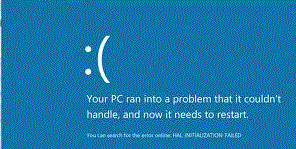
Do your computer experiencing errors or BSOD (Blue Screen Of Death) and suddenly reboot? Its because of the default configuration in your computer system that if there's an error occur your computer will reboot automatically. But there is a big problem, you dont know what the cause of the problem because the computer did not notify you the cause of the problem due to automatic system reboot. So how you gonna fix the occured error if you dont have atleast a little information of its cause. How are you gonna find for a solution or help if you dont have any information about the problem. Are you just gonna ignore it? But if you dont fix it, it will occur again and again.

Well, I will teach you how to disable the automatic rebooting of your computer. So when an error occured you will get the chance of knowing its cause. So lets disable the automatic restarting follow these steps.

Search sysdm.cpl using start menu search bar

First click "start orb" then on search bar type in "sysdm.cpl" then click on it. Take note: In some cases in window 7 and vista you'll have to open it using right click then "run it as administrator".

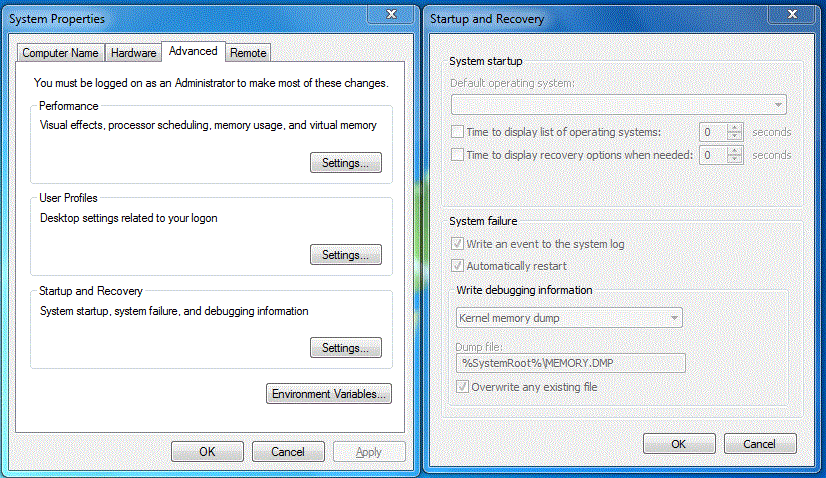
After that, the System Properties box will appear. Click the "Advanced" tab then in Startup and Recovery click "Settings".

System properties advance tab and startup & recovery setting
System properties advance tab box and startup & recovery setting box

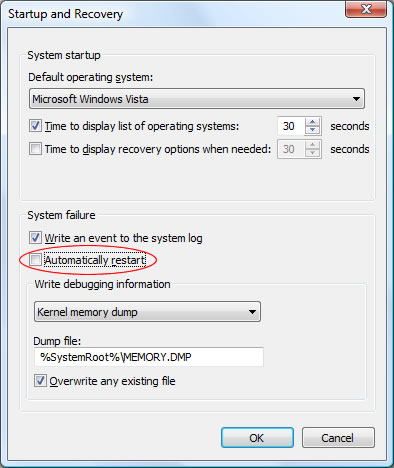
Then Startup and Recovery box will appear. In the System Failure, uncheck the box for "Automatically Restart" and then click the OK button.

Disabling / Turning off system automatic restart on system failures

There you go, your computer now wont reboot if an error occured. You'll have the chance to fix it now.
Dont forget to Post a Comment

Have you enjoy? Please help us improve this article, We encourage you to kindly please post a comment below for your reaction, correction, question and suggestion. Thanks


Read More
Posted in Computer Tips and Tricks | No comments

How To Download From SoundCloud Limitless

Posted on 01:29 by Unknown
How to download from soundcloud free and limitless
SoundCloud is an audio platform that enables anyone to upload, record, promote and share their originally-created sounds across the internet, in a simple, accessible and feature-rich way. From sample to symphony and soundbite to soliloquy, SoundCloud allows sound creators anywhere to instantly record audio on the site or via mobile applications and share them publicly or privately; to embed sound across websites, social networks and blogs and receive feedback from the community.

SoundCloud's open platform also supports a wide range of applications built on the SoundCloud API, enabling everything from mobile voice recording, online mastering, digital distribution to Facebook artist profiles and iPad music making. SoundCloud offers free accounts to amateur creators, with more advanced users able to upgrade to premium accounts for advanced features like statistics, controlled distribution and custom branding.

But did you experience when you go to SoundCloud, see a free track to download then a you see that "The track has reached its download limit" Do you still wish you could grab the download? Well, I'll teach you how you can do that, using the cloud downloader 1.5 thanks to MrXidus for sharing this.


Download Cloud Downloader here

You could see the download link just below the cloud download's youtube video.

After that, Copy the entire URL of the soundcloud music you want to download from your navigation bar and paste it into Cloud Downloader and click search then wait a few seconds. Then click the boxes next to the tracks you want to download and then select the location where you want to store downloads.

Depending on the track length and download size and your internet speed it may take some time. Once done you will have your donwloaded track.

Dont forget to Post a Comment

Have you enjoy? Please help us improve this article, We encourage you to kindly please post a comment below for your reaction, correction, question and suggestion. Thanks

Read More
Posted in Computer Tips and Tricks | No comments

Saturday, 1 October 2011

How To Speed Up Computer's Start-Up / Shutdown

Posted on 20:14 by Unknown
How to optimize your computer start up & boot perfomances
When you open your computer, after you log in. Do it take long time for your desktop to start-up, did you notice how your Memory/RAM was used up by many program that is running hidden at your computer's background that will eventually result to slow performances. You can see it by opening the task manager then click Performance. Does the boot time of your computer are too fast that your computer dont have enough time to close all program that is currently running and use by the user. These three are the common problem for those computer user that has too many program installed in their computer.

Well, I will teach you how to fix that problems and how to optimize it for computer to regain its top performance speed. The first thing that we gonna do is to open "msconfig" to disable some non-important, unused or less prioritize programs that currently running hidden at your computer background. Just follow these steps

There are two ways to access / open msconfig, First is to click the "start orb" then at the search bar type in "msconfig" then wait a seconds to appear and press enter.

Opening msconfig using Search bar

And the second is to click "start orb" then click "Run" and type in "msconfig" then press enter.

Opening msconfig using Run

Then click the "start up" tab and uncheck non-important, unused or less prioritize program except antivirus. But take note: If you are unsure on what the program is, better to do a research first before unchecking it.

Optimize your computer by disabling some start up using msconfig

Next, click the "boot.ini" tab and on the "timeout" box change the default booting time 5 seconds to 30 seconds.

Optimize your computer by configuring boot time using msconfig

After that close it and click "save" button. Well if there's a way on how to optimize / speed up your computer start up, ofcourse there is also a way on how to optimize / speed up computer's shutdown process. Ok lets start just follow these simple steps.

First, On your desktop click the "start orb" then type in "Regedit" and press enter.

Click start then type in regedit

After that, the "Registry Editor" will appear. Click the "HKEY_LOCAL_MACHINE" next click "SYSTEM" then "CurrentControlSet" and last is click the "Control" folder. Then Select "WaitToKillServiceTimeout"
Right click on it and select Modify.

Navigate to HKEY_LOCAL_MACHINE/SYSTEM/CurrentControlSet/Control & Select WaitToKillServiceTimeout

Set it a value lower than 2000. In my example 1900 or lower than it. then click ok.

Change the default value 12000 to any number lower than 2000

After that restart your computer to see some changes. 
Dont forget to Post a Comment

Have you enjoy? Please help us improve this article, We encourage you to kindly please post a comment below for your reaction, correction, question and suggestion. Thanks

Read More
Posted in Computer Tips and Tricks | No comments

Wednesday, 28 September 2011

Easy Way To Download & Convert Youtube Videos to mp3 files

Posted on 23:52 by Unknown
Fastest and easy way to download and convert youtube videos to mp3 files
Everyone loves musics but differ only on what type of song you want. Youtube is popular because visitors can watch and listen to their favorite music videos for free. Many people want to download their videos and convert it to many different file type that is compatible to there gadgets because music in youtube are high quality. Back when Limewire and Frostwire a software that let you browse for a music files and download it for free. But now they are paid software so many people has search the internet for an alternative ways to download and convert youtube videos for free. Well, I will teach you a way to download and convert youtube videos fast and free. By going to youtube-mp3.org.

YouTube-mp3.org is the easiest online service for converting videos to mp3. You do not need an account, the only thing you need is a YouTube URL. We will start to convert the audiotrack of your videofile to mp3 as soon as you have submitted it and you will be able to download it. Different from other services the whole conversion process will be perfomed by our infrastructure and you only have to download the audio file from our servers. Because of this our software is platform-independent: You can use it with your Mac, a Linux PC or even an iPhone. All our conversions will be perfomed in high quality mode with a bitrate of at least 128 kBit/s. Do not worry, our service is completely free. We need approximately 3 to 4 minutes per video.

ok lets start, First go to your favorite youtube music videos that you like to download and copy its address url.

Copy the URL of your favorite youtube music videos

Then open a new tab and go to www.youtube-mp3.org and paste the copied address url to the bar and click convert video button

Paste the copied URL to youtube-mp3's bar

and wait for a seconds then when the video appeared click the download button. The video was already converted so you may download it now.
When the youtube video appeared, You may now download the converted youtube music videos
There you go, just wait till the mp3 file download complete. Hope you like it.

Dont forget to Post a Comment

Have you enjoy? Please help us improve this article, We encourage you to kindly please post a comment below for your reaction, correction, question and suggestion. Thanks


Read More
Posted in Computer Tips and Tricks | No comments

Guide On How To Use PrintScreen Button For Windows

Posted on 23:07 by Unknown
Guide On How To Use PrintScreen Button For Windows
Want to capture happy, intense or memorable gaming experiences or just want to take screenshots on your desktop? Well, its possible. But taking screenshots of a fullscreen game while in action is kinda impossible for other tools or software but its possible when you use the printscreen button. But its a little bit confusing to use printscreen button for capturing screenshots when you have no idea or experience of using it. In my experience, I find it hard to use when I first use it because after I press printscreen button, the next thing that comes up to my mind is "now what the next step?" because there's no instructions or a notifying message that would say what the next step would be.

The position of the printscreen button is on right after the function keys, and there are many amongst us who think that pressing this button directly commands the computer to take a screenshot of the current screen. This is not true, as the function of this key is to take a snapshot of your current computer screen and then store it on your clipboard for further use. The clipboard is an invisible medium of sorts that comes into play whenever we are transferring and files or folders. Whenever we cut or copy something, the item is temporarily stored on the clipboard, before we actually go and paste it elsewhere. Thus we use print screen to capture screen shots onto our clipboard.

Well worry no more, I will teach you how to use printscreen button for capturing screenshot. Just follow these easy and simple steps.

Lets start, Play a game then pick a scene that you want to take a screenshot then press printscreen button.

Capturing a screenshot using printscreen button

After that, Go to your desktop. If your game is in the fullscreen mode, you may close it or just press alt+tab to go to desktop and minimize the game. Then open Paint application and on it press cntrl+v or right click and click paste.
Paste the taken screenshot to paint after pressing the printscreen button

Now that the image is in the notepad. Save it then name it with your desire name and add .bmp at the end. The name should look like this chess.bmp or chess.bmp then press save.

There you go, you now have the image. isn't simple and easy?

Dont forget to Post a Comment

Have you enjoy? Please help us improve this article, We encourage you to kindly please post a comment below for your reaction, correction, question and suggestion. Thanks


Read More
Posted in Computer Tips and Tricks | No comments
Newer Posts Older Posts Home
Subscribe to: Posts (Atom)

Popular Posts

  • Customize Window Default User Account Picture
    Want to change the default image / picture of your computer account? Your computer has already have an image / picture for your account. Thi...
  • How To Download From SoundCloud Limitless
    SoundCloud is an audio platform that enables anyone to upload, record, promote and share their originally-created sounds across the internet...
  • Best Free Computer Software Update Checker
    All Computer Software like internet browser, media player, antivirus, etc. are keeps on upgrading and releasing a newer version for faster a...
  • Guide On How To Disable Automatic Reboot On System Failures
    Do your computer experiencing errors or BSOD (Blue Screen Of Death) and suddenly reboot? Its because of the default configuration in your co...
  • Guide On How To Block A Website Without Using Software
    We all know that browsing the internet make your computer vulnerable from any malicious kind of attack. Well, I will teach you how to block ...
  • How To Customize and Enhance Your Taskbar
    In computer customizing for enhancing youre desktop to make it look cool and nice. But when you customize youre desktop did you notice that ...
  • New Cute Apps For Easy Update On Your Gmail & Social Networks
    In our daily lives, technology make hard task go lighter to make it easy for us. Thanks to computer technology it is now easy for us to conn...
  • Keep Your Firefox Safe While Browsing The Internet
    Browsing the internet is getting more and more dangerous as fast as the tech world evolves. Using internet to look for informations may lead...
  • How To Delete / Remove Undeletable Files
    Is there a lot of left over files remains in your computer? Uninstalling a program or software would not means that the whole files of it wo...
  • How To Revert New Facebook Chat To Previous One
    After facebook layout changes, some facebook users complain about the new interface of facebook chat sidebar. Maybe they hate it because the...

Categories

  • Computer Tips and Tricks

Blog Archive

  • ▼  2011 (33)
    • ▼  October (12)
      • How to Disable / Enable Auto Defragmentation at St...
      • How to Disable / Block USB Flash Drive's Autorun
      • Customize Window Default User Account Picture
      • Complete List of Keyboard Shortcut Keys in Window XP
      • How To Create Password Protected Folder Without Us...
      • How To Fix Mozilla Firefox's Addons Compatibility ...
      • How To Speed Up / Optimize Start Menu
      • How To Delete / Remove Undeletable Files
      • Recover Deleted Files In A Free Way
      • Guide On How To Disable Automatic Reboot On System...
      • How To Download From SoundCloud Limitless
      • How To Speed Up Computer's Start-Up / Shutdown
    • ►  September (17)
    • ►  August (4)
Powered by Blogger.

About Me

Unknown
View my complete profile