In Tech Talk

  • Subscribe to our RSS feed.
  • Twitter
  • StumbleUpon
  • Reddit
  • Facebook
  • Digg

Saturday, 15 October 2011

How to Disable / Enable Auto Defragmentation at Start up & Boot time

Posted on 06:36 by Unknown
Guide on How to Disable / Enable Auto Defragmentation at Start up & Boot time
 Do you defragment your hard drive for faster computer performances? You may not know this yet but in window vista and window 7 you dont have to do that because it is in system default that your computer will do a automatic hard drive defragmentation on computer start up and boot time. It is one of the best features in window vista and window 7 to prevent files fragmentation that cause slowdown on hard drive's performances and maintain your computer speed at its top. The Automatic Defragmentation is very useful but despite of that, some user want the automatic defragmentation to be disable / turn off because it cause system slowdown for those who have a low system components and cant wait for the defragmentation process to finish. Or just want to do the hard drive defragmentation manually. But in some cases, others window 7 and window vista dont have the automatic hard drive defragmentation enable. Well I have the solution wether you want the automatic defragmentation to be disable or enable.

Well, I will teach you how to enable / disable automatic hard drive defragmentation in window vista and window 7. To disable it just follow these steps.

First click "Start" orb then type in "regedit" and press on it.

The Registry Editor opens in a new Window. Click the "HKEY_LOCAL_MACHINE" then "SOFTWARE" then "Microsoft" then "Dfrg" and click the "BootOptimizeFunction" folder.

Now look at the right side of your registry editor. In here the tutorial will be divided into two. The first one is how to disable automatic defragmentation and the second is how to enable automatic defragmentation.


How to Disable Automatic Defragmentation at start up and boot time

Right-click on the "Enable" and click edit. In the Value data box type, "N" then click OK.
Then Right-click on the keyword "Optimizecomplete" and click edit.
In the Value Data box, change "Yes" to "No". Confirm by clicking OK. So the automatic hard disk defragmentation will be disable.

How to Disable Automatic Defragmentation at start up and boot time

How to Enable Automatic Defragmentation at start up and boot time

Check and see if "Enable" is already there, right click on it then click "modify" Double click on Enable. This will bring up Value Data box. Put in "Y" to enable automatic disk defragmentation.

How to Enable Automatic Defragmentation at start up and boot time

If "Enable" is not there, follow the steps to create "Enable". Right click on the right hand side of your registry editor. Select "New" and then select "String Value". Rename the new String Value "Enable". Then double click on it and the value data box put in "Y" to enable automatic hard disk defragmentation.

Then Right-click on the keyword "Optimizecomplete" and click edit.
In the Value Data box, change "No" to "Yes". Confirm by clicking OK. So the automatic hard disk defragmentation will be enable.

Close the Registry Editor. Changes will be effective upon restarting Windows.

Dont forget to Post a Comment

Have you enjoy? Please help us improve this article, We encourage you to kindly please post a comment below for your reaction, correction, question and suggestion. Thanks


Read More
Posted in Computer Tips and Tricks | No comments

How to Disable / Block USB Flash Drive's Autorun

Posted on 06:15 by Unknown
Guide on How to Disable / Block USB Flash Drive's Autorun
As we all know how computer world has been threaten by many kinds of malicious attacks by virus, malware, spyware, rootkits and identity theft. As we browse the Internet, our computer is being vulnerable to all kinds of attack. But did you know that the most effective way for a virus, malware, spyware, rootkits and identity theft to enter to your computer is with the help of the USB flash drive. Sample scene: You have a new USB flash drive and manage to copy a file in other computer that you didn't know that it is infected by either any of these virus, malware, spyware, rootkits and identity theft. Without noticing, it will enter or make a copy of it self into the USB flash drive and When connected to a PC, the infection is transmitted via removable drives such as cookies (examples:AdobeR.exe, RavMon.exe, Host.exe, Svchost.exe, ise32.exe, Copy.exe, MS32DLL.dll.vbs).

Well there are many ways to prevent that like having a latest antivirus program or having a security program for USB. But the most effective why to prevent transferable virus, malware, spyware, rootkits and identity theft is to disable USB flash drive's autorun.

Well, I will teach you how to ensure your computer safety from transferable malicious programs. I will teach you how to disable autorun by default under window to prevent computer infections through USB flash drive. I see a lots of internet cafe doing this. Ok lets start follow these steps.

First, Click "Start" and open "Notepad". Then we will create a .reg file, In the opened Notepad copy paste the code below and name it as "autorun_disable.reg"

Code:

[HKEY_LOCAL_MACHINE\SOFTWARE\Microsoft\Windows\CurrentVersion\policies\Explorer]
"NoDriveTypeAutoRun"=dword:000000ff

[HKEY_CURRENT_USER\Software\Microsoft\Windows\CurrentVersion\Policies\Explorer]

"NoDriveTypeAutoRun"=dword:000000ff

Paste the code in notepad and save it as autorun_disable to disable USB flash drive autorun

After that Double-click the file to run. You will receive a message asking if you want to add data in the registry.
Double click the create reg file and click yes to disable USB flash drive autorun

Click Yes to allow the change. Then Restart the system for the changes to take effect.

Dont forget to Post a Comment

Have you enjoy? Please help us improve this article, We encourage you to kindly please post a comment below for your reaction, correction, question and suggestion. Thanks


Read More
Posted in Computer Tips and Tricks | No comments

Sunday, 9 October 2011

Customize Window Default User Account Picture

Posted on 17:09 by Unknown
Customize Default User Account Picture for all Window Operating System
Want to change the default image / picture of your computer account? Your computer has already have an image / picture for your account. This image / picture can be seen before computer start to load up the desktop. Where you need to enter password or choosing your account if there are more than one account created. It can also be seen on the start menu for window vista and window 7. If you dont like your account's primary image / picture and want to know how to change it.

Well, I'm gonna teach you the simple way on how to change your window account's default image / picture.

For Windows XP/vista/seven

First, click "Start" orb and click Control Panel. Go to "User Accounts" then click on your account and select on "Change my Picture".

Choose the image you like from the above section, or browse your hard disk to make use of a custom picture.


Customize Default User Account Picture in Window XP

Customize Default User Account Picture in Window Vista & 7


Quick Way on Windows Seven/Vista

Quick way to change window account's default image / picture.
First, click "Start" orb then click on the icon (on upper right) of your account. In my sample picture below is a briefcase.

Quick Way Customize Default User Account Picture in Window Vista & 7

Then select "change your image. Choose the image you want to save and click "edit".

There you go. Hope you like your new account's image / picture.

Dont forget to Post a Comment

Have you enjoy? Please help us improve this article, We encourage you to kindly please post a comment below for your reaction, correction, question and suggestion. Thanks


Read More
Posted in Computer Tips and Tricks | No comments

Complete List of Keyboard Shortcut Keys in Window XP

Posted on 16:34 by Unknown
Complete List of Keyboard Shortcut Keys in Window XP
Want to know the shortcut keys on window XP? Are you new to your computer operating system window XP. Window XP is well known and review as the good window operating system because of its minimal system requirements and many recomment it to those computer owner that has a low system hardware. I remember a article that had read, telling that among the three window operating system, window 7 is the best while window xp is good. It my not have a good graphics but it is better than window vista when it comes to system performance speeds. Well aside from that information, I will share you the shortcut keys that can be useful on your computing experience. 

What is Shortcut keys?
Shortcut keys are keyboard keys (or key combinations) which are configured to execute an often-used command or set of commands.

Windows XP Shortcuts: 

ALT+- (ALT+hyphen) Displays the Multiple Document Interface (MDI) child window's System menu
ALT+ENTER View properties for the selected item
ALT+ESC Cycle through items in the order they were opened
ALT+F4 Close the active item, or quit the active program
ALT+SPACEBAR Display the System menu for the active window
ALT+TAB Switch between open items
ALT+Underlined letter Display the corresponding menu
BACKSPACE View the folder one level up in My Computer or Windows Explorer
CTRL+A Select all
CTRL+B Bold
CTRL+C Copy
CTRL+I Italics
CTRL+O Open an item
CTRL+U Underline
CTRL+V Paste
CTRL+X Cut
CTRL+Z Undo
CTRL+F4 Close the active document
CTRL while dragging Copy selected item
CTRL+SHIFT while dragging Create shortcut to selected iteM
CTRL+RIGHT ARROW Move the insertion point to the beginning of the next word
CTRL+LEFT ARROW Move the insertion point to the beginning of the previous word
CTRL+DOWN ARROW Move the insertion point to the beginning of the next paragraph
CTRL+UP ARROW Move the insertion point to the beginning of the previous paragraph
SHIFT+DELETE Delete selected item permanently without placing the item in the Recycle Bin
ESC Cancel the current task
F1 Displays Help
F2 Rename selected item
F3 Search for a file or folder
F4 Display the Address bar list in My Computer or Windows Explorer
F5 Refresh the active window
F6 Cycle through screen elements in a window or on the desktop
F10 Activate the menu bar in the active program
SHIFT+F10 Display the shortcut menu for the selected item
CTRL+ESC Display the Start menu
SHIFT+CTRL+ESC Launches Task Manager
SHIFT when you insert a CD Prevent the CD from automatically playing
WIN Display or hide the Start menu
WIN+BREAK Display the System Properties dialog box
WIN+D Minimizes all Windows and shows the Desktop
WIN+E Open Windows Explorer
WIN+F Search for a file or folder
WIN+F+CTRL Search for computers
WIN+L Locks the desktop
WIN+M Minimize or restore all windows
WIN+R Open the Run dialog box
WIN+TAB Switch between open items

There you go, try it out.

Dont forget to Post a Comment

Have you enjoy? Please help us improve this article, We encourage you to kindly please post a comment below for your reaction, correction, question and suggestion. Thanks


Read More
Posted in Computer Tips and Tricks | No comments

Thursday, 6 October 2011

How To Create Password Protected Folder Without Using Software

Posted on 23:43 by Unknown
How To Create Password Protected Folder Without Using Software
Want to make a password protected folder? Is your computer had many users? Have a important files that is stored in one of the folder in your computer with many user, is not safe. Unless you are the admin / administrator because you can manage another account and open the "guest". That means all files (as an admin) will cannot be access or perform any action when the user is using the guest account. But what if all users use the same admin account the only thing you can do is to create a folder where you can place all your files and set a password.

Well, I will teach you how to create a folder with a password so that only those user who knows the password can open it. Ok lets start, just follow these steps.

Create a New folder then make a new text file inside it

First make a new folder ( name it as you like ) then inside this folder, right click then "new" and click "Text Document". Open the text file then copy the entire code below  and paste it inside.

Code:
Quote:
Quote: cls
@ECHO OFF
title Folder Private
if EXIST "Control Panel.{21EC2020-3AEA-1069-A2DD-08002B30309D}" goto UNLOCK
if NOT EXIST Private goto MDLOCKER
:CONFIRM
echo Are you sure you want to lock the folder(Y/N)
set/p "cho=>"
if %cho%==Y goto LOCK
if %cho%==y goto LOCK
if %cho%==n goto END
if %cho%==N goto END
echo Invalid choice.
goto CONFIRM
:LOCK
ren Private "Control Panel.{21EC2020-3AEA-1069-A2DD-08002B30309D}"
attrib +h +s "Control Panel.{21EC2020-3AEA-1069-A2DD-08002B30309D}"
echo Folder locked
goto End
:UNLOCK
echo Enter password to unlock folder
set/p "pass=>"
if NOT %pass%== password here goto FAIL
attrib -h -s "Control Panel.{21EC2020-3AEA-1069-A2DD-08002B30309D}"
ren "Control Panel.{21EC2020-3AEA-1069-A2DD-08002B30309D}" Private
echo Folder Unlocked successfully
goto End
:FAIL
echo Invalid password
goto end
:MDLOCKER
md Private
echo Private created successfully
goto End

:End

After you've paste the code dont save it yet. Find this line : (if NOT %pass%== password here goto FAIL ) and change the word "password here" to the password you want.

Find password here then replace it with the desire password

So your password here becomes "InTechTalk" make sure that you can remember it. After that go to 'save as' & name this file as "locker.bat ". Now back to the folder & you will find a "LOCKER command".

Locker command screenshot

Double Click on it & you will find a new folder (Private ). Ok, now copy what you want in this "Private Folder" & after that come out of the folder.

New Private folder screenshot

Double click on locker again. It will open and ask if you want to lock your folder? Y/N ?. Press "Y" and press enter, then your private folder will dissapear. If you want to UNLOCK your folder, go to "LOCKER command" & type your password and you will see your private folder.

It not only hides the folder, but in case, you unhide all files... and try opening it without entering password, it will take you to the control panel...

Dont forget to Post a Comment

Have you enjoy? Please help us improve this article, We encourage you to kindly please post a comment below for your reaction, correction, question and suggestion. Thanks

Read More
Posted in Computer Tips and Tricks | No comments

Tuesday, 4 October 2011

How To Fix Mozilla Firefox's Addons Compatibility Problem

Posted on 21:59 by Unknown
How To Fix Mozilla Firefox's Addons Compatibility Problem
Mozilla Firefox is widely known for its addons but there are lots of addons that only work for firefox that has lower version than 4. So how can you enhance your mozilla firefox if the version you have is the latest or higher the version 4. Well, in case you havent know yet but there is a available trick to fix addons compatibility problem. But the only problem is, its time consuming editing the addons setting one by one just to make it compatible and work to your current mozilla firefox version. Well, I will teach you an easy way to make all addons work for your current mozilla firefox version. Just follow these steps.

First open up mozilla firefox then type in "about:config" then enter. Click the "I'll be careful" button.

open up mozilla firefox then type in about:config then enter. Click the I'll be careful button

Then here we will create a new boolean to make all addons compatible to your firefox. Right click onto it (anywhere) then click "new" and then click "boolean".

create a new boolean, Right click onto it then click new and then click boolean

After that a new boolean value box will appear, copy one of the code below that correspond to your current mozilla firefox that you use or currently have (make sure not to copy the parenthesis and the word inside it) and paste it in the "enter the preference name" then click ok"

Copy then paste the code and paste it in the enter the preference name

Codes:
extensions.checkCompatibility.4.0 (for Firefox 4.0)
extensions.checkCompatibility.5.0 (for Firefox 5.0)
extensions.checkCompatibility.6.0 (for Firefox 6.0)
extensions.checkCompatibility.7.0 (for Firefox 7.0)

click false and then click ok

Then click "false" and then click "ok". After that restart your mozilla firefox (not your computer). And when it open again, You may try now to install any addons you want to your mozilla firefox and see no problem while installing it.

Dont forget to Post a Comment

Have you enjoy? Please help us improve this article, We encourage you to kindly please post a comment below for your reaction, correction, question and suggestion. Thanks


Read More
Posted in Computer Tips and Tricks | No comments

How To Speed Up / Optimize Start Menu

Posted on 21:18 by Unknown
How To Speed Up / Optimize StartMenu
Not all your shortcuts are displayed on your computer desktop and taskbar. So we use the start menu to look for a program that are installed but doesnt have shortcut display on the desktop. We also use start menu to easily access all our control panel, mycomputer, network and folders like musics, videos, picture. But is your start menu take a long time to show up and display all shortcut in menu. Well I will teach you how to optimize and speed up your start menu for faster displaying / show up. Just follow these steps.


First click start orb then type in "regedit" without the quotaion at the search bar and press enter.

Click start then type in regedit

Then when regedit appear,Navigate to HKEY_CURRENT_USER\Control Panel\Desktop
Select "MenuShowDelay" from the list on the right. Right on it and select "Modify".

Navigate to HKEY_CURRENT_USER\Control Panel\Desktop & Select MenuShowDelay

Change the default value "400" to "0" then press ok.

Change the default value 400 to 0 then press ok

That's it, Reboot your computer to see some changes.

Dont forget to Post a Comment

Have you enjoy? Please help us improve this article, We encourage you to kindly please post a comment below for your reaction, correction, question and suggestion. Thanks


Read More
Posted in Computer Tips and Tricks | No comments

Monday, 3 October 2011

How To Delete / Remove Undeletable Files

Posted on 20:04 by Unknown
Complete guide on how to delete the undeletable files / folders
Is there a lot of left over files remains in your computer? Uninstalling a program or software would not means that the whole files of it would be remove completely. In most cases there are few files remain after you finish uninstalling and some of it are undeletable. You may not know maybe it could be a virus, malware, or a spyware. If not be remove or delete that would only mean that its gonna be a permanent temporary files that would contribute to build a problem that cause slowdown to your computer. Using a software for may removing it, but not all. Like for example in Ccleaner when you click the analyze button it will start scanning for files to be remove. After the scan finished it gives you a detail of total size of files to be remove for example 10mb but when you click the clean button and it finish removing the file, sometime it deleted 80 - 90 percent of the total files. The files that the Ccleaner cannot remove is the undeletable files. Well, I will teach you a possible way to remove / delete the undeletable files or folders.

Deleting Undeletable File Manually
Aere's a trick for removing undeletable file. As you can see in the picture below the "SoftwareU.." is my sample undeleted file. To remove / delete it just follow the steps. First open Notepad, then type anything on it and save as.

Step 1 for deleting undeletable file : Open notepad and save it

After that locate the folder where the undeletable files are and change the "file type" to "All files" to make all files in the folder or container to be visible.

Step 2 for deleting undeletable file: Locate it and click All Files

Then click the undeletable file once so its name will be copy in the "filename" box of the notepad and add " quotation mark at the start and end of the name.

Step 3 for deleting undeletable file: Click it once and add quotation mark

The filename should have the extension of the undeletable file so that it will overwrite it. Then click save and it should ask you wether to overwrite it or not. ( if it ask you, that means your on the right track) Pick Yes.

Thats it, Now you should be able to remove the undeletable file just by deleting it normally.

How To Resolve Error Message Saying "Error Deleting File or Folder" & "File or Folder In Use"
In some cases if you try to remove files and then receive a message just like the pictures below that means that the file is currently use by a running program. If you wish to delete / remove it, open "task manager" by pressing (cntrl + alt + delete) or right click on the taskbar then click "Start Task Manager" and click the "process" tab find the program and right click and choose "End Process". Make sure you know what program is using the file that you want to remove. After that you may now delete that folder or files.

Window Xp : Error Message Saying Error Deleting File or Folder

Window Vista & 7 : Error Message Saying File / Folder In Use

How to Resolve Message Saying "Folder Access Denied"
And if you see a message just like the picture below. That means that you dont have the rights to delete it, you need the Admin / Administrator's permission for you to be able to delete it. Log in the Administrator's Account and delete it.

Window XP : Error Message Saying You need permission to perform this action

Window Vista & 7 : Error Message Saying You need permission to perform this action

That's it, Hope your problem has been resolve.

Dont forget to Post a Comment

Have you enjoy? Please help us improve this article, We encourage you to kindly please post a comment below for your reaction, correction, question and suggestion. Thanks


Read More
Posted in Computer Tips and Tricks | No comments

Recover Deleted Files In A Free Way

Posted on 01:29 by Unknown
How to recover / restore back deleted files in recycle bin
Too concern about the cleanliness of your computer? Well, its good because it prevent temporary file to build up that may cause computer slowdown. Also good for maintaining a neat and organize files and documents. But what if you accidentally delete one of your important file in your computer. Well, have no worry if thats the only case. You can still recover your deleted files in the Recycle Bin here's how to do that.

First is open recycle bin on the desktop then click or highlighten the deleted files then press the right click and choose "restore file" or just drag it out of the recycle bin and drop it to your desktop. That's it you now recovered your files.

Restore back files that has been deleted

But in worse scenario, what if you deleted the file and you clean the recycle bin. Oh no, that would be a big problem for you. Well, I will tell you the fact that there's free software that can recover deleted files that have been deleted from recycle bin. The free software is called "Restoration".

What is Restoration
Restoration is an easy to use and straight forward tool to undelete files that were removed from the recycle bin or directly deleted from within Windows, and we were also able to recover photos from a Flash card that had been formatted. Upon start, you can scan for all files that may be recovered and also limit the results by entering a search term or extension. In addition, it also provides the option to wipe the found files beyond simple recovery. The program is small and standalone, it does not require installation and can also run from a Floppy disk. Restoration works with FAT and NTFS as well as digital cameras cards.

Download Restoration here

Restore back deleted files in Recycle bin that has been deleted

After finish downloading, install it then go to C:Drive and open Restoration folder. Run Restoration program, click the "Search Deleted Files" button at the sidebar and wait until it finish searching for all deleted files. Then select the file that you want to restore back and click the "Restore by Copying" button.

That's it hope you like it.

Dont forget to Post a Comment

Have you enjoy? Please help us improve this article, We encourage you to kindly please post a comment below for your reaction, correction, question and suggestion. Thanks


Read More
Posted in Computer Tips and Tricks | No comments

Sunday, 2 October 2011

Guide On How To Disable Automatic Reboot On System Failures

Posted on 02:55 by Unknown
How to turn off automatic reboot on system failures
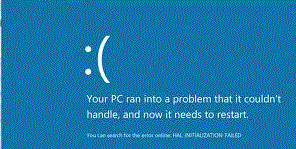
Do your computer experiencing errors or BSOD (Blue Screen Of Death) and suddenly reboot? Its because of the default configuration in your computer system that if there's an error occur your computer will reboot automatically. But there is a big problem, you dont know what the cause of the problem because the computer did not notify you the cause of the problem due to automatic system reboot. So how you gonna fix the occured error if you dont have atleast a little information of its cause. How are you gonna find for a solution or help if you dont have any information about the problem. Are you just gonna ignore it? But if you dont fix it, it will occur again and again.

Well, I will teach you how to disable the automatic rebooting of your computer. So when an error occured you will get the chance of knowing its cause. So lets disable the automatic restarting follow these steps.

Search sysdm.cpl using start menu search bar

First click "start orb" then on search bar type in "sysdm.cpl" then click on it. Take note: In some cases in window 7 and vista you'll have to open it using right click then "run it as administrator".

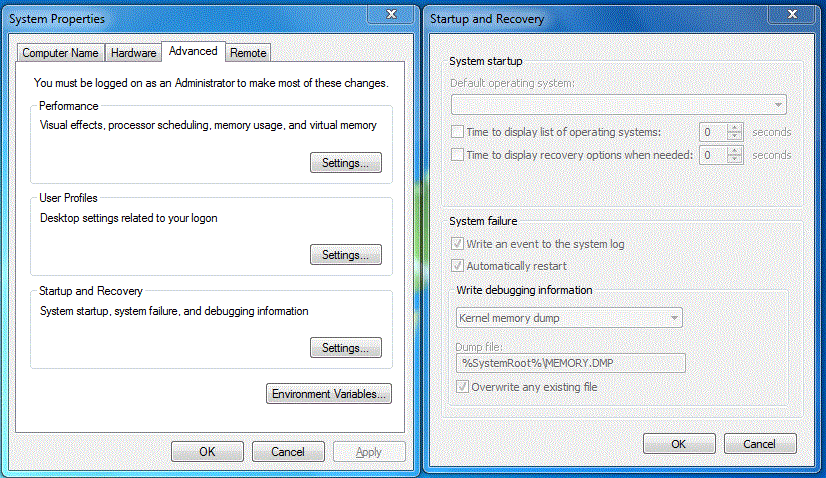
After that, the System Properties box will appear. Click the "Advanced" tab then in Startup and Recovery click "Settings".

System properties advance tab and startup & recovery setting
System properties advance tab box and startup & recovery setting box

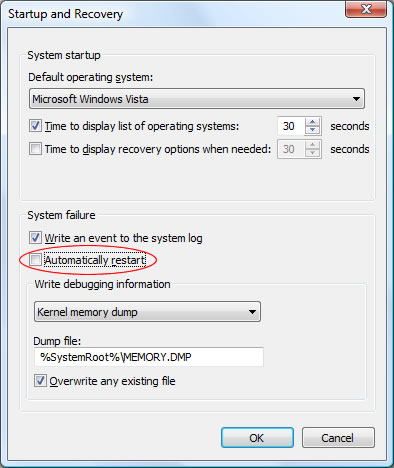
Then Startup and Recovery box will appear. In the System Failure, uncheck the box for "Automatically Restart" and then click the OK button.

Disabling / Turning off system automatic restart on system failures

There you go, your computer now wont reboot if an error occured. You'll have the chance to fix it now.
Dont forget to Post a Comment

Have you enjoy? Please help us improve this article, We encourage you to kindly please post a comment below for your reaction, correction, question and suggestion. Thanks


Read More
Posted in Computer Tips and Tricks | No comments
Newer Posts Older Posts Home
Subscribe to: Comments (Atom)

Popular Posts

  • Ways To Know What's The Best Internet Browser Today
    As the battle between internet browsers continue, To be known as the best nor the fastest internet browser today. The top five known interne...
  • Customize Window Default User Account Picture
    Want to change the default image / picture of your computer account? Your computer has already have an image / picture for your account. Thi...
  • Guide On How To Disable Automatic Reboot On System Failures
    Do your computer experiencing errors or BSOD (Blue Screen Of Death) and suddenly reboot? Its because of the default configuration in your co...
  • New Cute Apps For Easy Update On Your Gmail & Social Networks
    In our daily lives, technology make hard task go lighter to make it easy for us. Thanks to computer technology it is now easy for us to conn...
  • Keep Your Firefox Safe While Browsing The Internet
    Browsing the internet is getting more and more dangerous as fast as the tech world evolves. Using internet to look for informations may lead...
  • How To Delete / Remove Undeletable Files
    Is there a lot of left over files remains in your computer? Uninstalling a program or software would not means that the whole files of it wo...
  • How To Revert New Facebook Chat To Previous One
    After facebook layout changes, some facebook users complain about the new interface of facebook chat sidebar. Maybe they hate it because the...
  • How To Download From SoundCloud Limitless
    SoundCloud is an audio platform that enables anyone to upload, record, promote and share their originally-created sounds across the internet...
  • Best Free Computer Software Update Checker
    All Computer Software like internet browser, media player, antivirus, etc. are keeps on upgrading and releasing a newer version for faster a...
  • Guide On How To Block A Website Without Using Software
    We all know that browsing the internet make your computer vulnerable from any malicious kind of attack. Well, I will teach you how to block ...

Categories

  • Computer Tips and Tricks

Blog Archive

  • ▼  2011 (33)
    • ▼  October (12)
      • How to Disable / Enable Auto Defragmentation at St...
      • How to Disable / Block USB Flash Drive's Autorun
      • Customize Window Default User Account Picture
      • Complete List of Keyboard Shortcut Keys in Window XP
      • How To Create Password Protected Folder Without Us...
      • How To Fix Mozilla Firefox's Addons Compatibility ...
      • How To Speed Up / Optimize Start Menu
      • How To Delete / Remove Undeletable Files
      • Recover Deleted Files In A Free Way
      • Guide On How To Disable Automatic Reboot On System...
      • How To Download From SoundCloud Limitless
      • How To Speed Up Computer's Start-Up / Shutdown
    • ►  September (17)
    • ►  August (4)
Powered by Blogger.

About Me

Unknown
View my complete profile